How to Speed Up a Heavy Web App
Discover what happened in April 2025. This month features a deep dive into optimizing heavy web apps using Web Workers, WebP, OPFS, and more.

A user uploads a 150 page PDF. The screen freezes. Memory jumps. The loading skeletons never end. Then Google Chrome shows its “Page does not respond” screen.
That was the first version of a feature I built for Scan Documents, one of my latest projects. Scan Documents is an app that helps you digitize documents. The idea was simple on paper. Users upload images or PDFs, then view the pages and maybe edit them right in the browser. But these were not small flyers. Some documents had hundreds of pages.
The core task was to convert each PDF or image page into an image on the client side, inside the browser. That first version was not pretty. I hit the performance wall, and I hit it hard. I have felt this many times. You spend weeks on a feature, and then it is slow. Users get frustrated, clicks feel laggy, and sometimes the whole browser tab crashes.
Solving this kind of puzzle is part of the fun, though. This post is my story. I share the practical steps I took and the tricks I learned to make that app run smoothly.
What was slowing things down
Picture the 150 page PDF again. Our app needs to show each page as an image. My first, naive approach was this. Take the PDF and loop through the pages. Use a library (like pdfium) to draw each page onto a canvas. Convert that canvas to an image, maybe a PNG. Then put it in the DOM, the tree of elements that makes up the page.
Why was this so bad?
- The main thread was stuck: JavaScript usually runs on a single main thread. This thread does everything. It runs your code, paints the screen and responds to clicks. When you give it heavy work, like parsing a big PDF and drawing dozens of complex pages, it has no time for anything else. So the UI freezes. You click a button and nothing happens. You try to scroll and nothing moves. It is like talking to someone who is solving a giant math problem in their head.
- Memory exploded: Raw image data is HUGE, especially uncompressed data that comes straight from a canvas. Load hundreds of these into memory at the same time, and memory use climbs very fast. On less powerful computers or phones, the browser tab often crashed.
- The DOM was overloaded: Even when the images were ready, rendering hundreds or thousands of
<img>elements at once caused big problems. The browser struggled to lay out and manage that many items. Scrolling became jerky or stopped working.
I remember load times of minutes, not seconds. I watched the browser’s task manager turn red. This approach was more than slow. It was broken for this task. Something had to change.
Move the heavy work away
The most obvious problem was the blocked main thread. If heavy work freezes the UI, the answer is to do that work somewhere else. This is exactly what Web Workers are for.

Think of a Web Worker as an assistant who works in a separate room, which is a separate thread. You give them a hard task. While they convert PDF pages, you (the main thread) keep the shop running. You update spinners, respond to cancel buttons and keep the UI smooth. Here is how I set it up:
- The main thread gets the PDF file.
- It sends the file data to a Web Worker. This is like handing the paperwork to your assistant.
- The worker receives the data and loads the PDF library (yes, workers can run external scripts!). Then it processes the PDF page by page. It draws a page and converts it to the image format we need. We will get to which format later.
- The worker sends results back one at a time. It might send the image data for page 1, then page 2, and so on, with progress updates. Later we will see that sending the image data itself was not the best idea.
- The main thread listens for these messages and updates the UI with a thumbnail for each page.
The difference was huge. The UI stayed responsive. Users could watch the progress, and they could still use other parts of the app. Web Workers were the first big win.
Skip what nobody can see
The UI no longer froze during processing. But we still had hundreds of generated images, and showing them all at once was still impossible. If a document has 500 pages, you do not need 500 images in the DOM right away. You only care about the few on screen, plus a few above and below so scrolling feels smooth.
This is called list virtualization. The idea is simple. Only render the items that are inside or near the part of the page the user can see, which is called the viewport.
 content-visibility | CSS-Tricks The content-visibility property in CSS indicates to the browser whether or not an element’s contents should be rendered at initial load time. So, as the
You could use a JavaScript library for this. These libraries calculate which items should be visible from the scroll position and the container size. Then they add and remove DOM elements by hand. They work, but they add complexity, and they can be tricky to get right.
Here is the good part. Browsers are getting smarter. There is a fairly new CSS property called content-visibility. Set it to auto on the elements that hold your pages, and something great happens.
.document-page-container {
  content-visibility: auto;
  contain-intrinsic-size: 800px 1100px; /* Approx. page height/width */
}
content-visibility: auto tells the browser it does not need to render the content of this box while the box is off screen. The browser skips the layout and painting work for those elements. That saves a lot of work.
You can use contain-intrinsic-size to help the layout. It tells the browser the size of an element before it renders the content. Without it, the scrollbar might jump around as content loads, because the browser does not know how much space the off screen content will take. You give it an estimated width and height. You can also skip it.
Using content-visibility: auto felt almost like cheating. With two lines of CSS, scrolling through hundreds of pages became very smooth. The complex virtualization libraries on npm could not match that simplicity.
Make every image smaller
Background processing and smart rendering were done. But the memory problem was still there. Even if we rendered only a few images at a time, we still generated hundreds of PNGs or JPEGs. They used a lot of memory, both in the worker that created them and on the main thread that displayed them. And if we needed to store them or send them around, the big file sizes hurt.

The answer was WebP. WebP is a modern image format from Google. It compresses images much better than JPEG and PNG, both with quality loss (lossy) and without it (lossless). A smaller file means less memory, less bandwidth over a network, and often faster decoding and display.
So inside the Web Worker, after drawing a PDF page on a canvas, I stopped exporting it as a PNG with canvas.toDataURL('image/png'). I switched to WebP:
// Converting the bitmap data into a webp image
await canvas.convertToBlob({ type: "image/webp" });
The files got much smaller. Compared to PNG, the image data often shrank by 50% or more, with no visible drop in quality. That meant lower memory use everywhere. Everything became lighter and easier to manage.
Move memory to disk
Things were getting fast. Then a new challenge appeared. The Web Worker was producing light WebP images as Blobs (a Blob is a chunk of raw file data). How do we get them to the main thread quickly? And how could several workers share them, if we decided to process pages in parallel?
Workers and the main thread talk by sending messages, and that works well. But when you send large data like image Blobs, the browser often has to copy or serialize it. That can still be slow and use a lot of memory, especially with many images. I needed a way to share the data without expensive copies.
That led me to the Origin Private File System (OPFS). OPFS is a newer browser API. It gives your web app a private file system that belongs to its origin, your website’s domain, and that no other site can touch. Think of it as a small, fast, private hard drive that the browser manages just for your site.

Here is the workflow I used:
- The Web Worker generates the WebP image Blob for a page.
- The worker does not send the Blob itself. It writes the Blob to a file in OPFS and gets a handle or a path to that file.
- The worker sends only the reference back to the main thread. The reference is an internal uuid I gave each document. This message is tiny!
- The main thread needs to show page 5, maybe because it scrolled into view. It uses the file name to read the file from OPFS and gets the Blob back.
Why was this better?
- No costly copies: We pass tiny text references instead of large binary data.
- Easy sharing: With several workers, they could all read and write in this shared OPFS space, with careful coordination, of course.
- Possible persistence: Data in OPFS can survive between sessions. We mostly used it for temporary storage during one session.
- Lower memory use: We load images into memory only when we need them, instead of keeping them there all the time.
OPFS changed how I handled the generated files. It worked like a fast temporary cache that every part of the app could reach. It did not clog the message channels, and it did not fill up memory.
Clean up object URLs
This one is quick but very important. To show a Blob (like our WebP images) in an <img> tag, a common way is URL.createObjectURL(blob). It creates a special temporary URL (like blob:http://.../uuid) that the <img> tag can use as its src.
const imageUrl = URL.createObjectURL(imageBlob);
imgElement.src = imageUrl;
Sounds simple, right? But many people do not know this catch. These object URLs keep a reference to the Blob data in memory. The browser does not know when you are done with them. If you keep creating these URLs (for example, every time a page scrolls into view) and never clean them up, you get a memory leak. Memory use keeps climbing, because the browser holds on to all those old Blobs.
The fix is simple and essential: URL.revokeObjectURL(imageUrl). Call it when you no longer need the object URL.
When exactly? It depends, but these are common places:
- After the image has loaded
(imgElement.onload = () => { URL.revokeObjectURL(imageUrl); }). - In React, often in the useEffect cleanup function, which runs when the component unmounts or the src changes.
useEffect(() => {
  if (!imageBlob) return;
  const imageUrl = URL.createObjectURL(imageBlob);
  imgElementRef.current.src = imageUrl;

  // Cleanup function:
  return () => {
    URL.revokeObjectURL(imageUrl);
    imgElementRef.current.src = ''; // Clear src just in case
  };
}, [imageBlob]);
Revoking these URLs every time stopped the slow memory leaks. The app became much more stable during long sessions. It is like closing your browser tabs when you are done with them.
Trying the React Compiler
Even with all these fixes, a complex UI can still re-render more than it needs to. In React, we spend a lot of time optimizing components by hand with React.memo, useMemo and useCallback. It works, but it adds extra code, and it is easy to miss a spot or get the dependencies wrong.
So I tried the React Compiler, which was still experimental. The React team builds it. The compiler promises to figure out which parts of your components need memoization (saving results so they are not computed again). It applies those optimizations when you build the app. The goal is fast rendering by default, without filling your code with memoization hooks.

The possible benefit is cleaner code. Performance may also improve, because the compiler might catch things a person would miss. And you spend less energy worrying about optimizing every small thing.
There is an important warning. As I write this, the React Compiler is still experimental. It might have bugs or edge cases, or it might change before it becomes stable. It is worth watching, and maybe trying in projects or branches that are not critical. I would not depend on it in production yet. Still, it is an exciting direction for performance at the framework level.
How the pieces fit
None of these strategies worked alone. The real gains came when they worked together:
- Web Workers moved the heavy image processing off the main thread.
- The workers generated small WebP images.
- OPFS stored and shared those images without copies.
- content-visibility made the browser render only the few visible pages.
- Revoking object URLs kept memory use under control.
- Experiments with the React Compiler aimed to make UI updates even lighter.
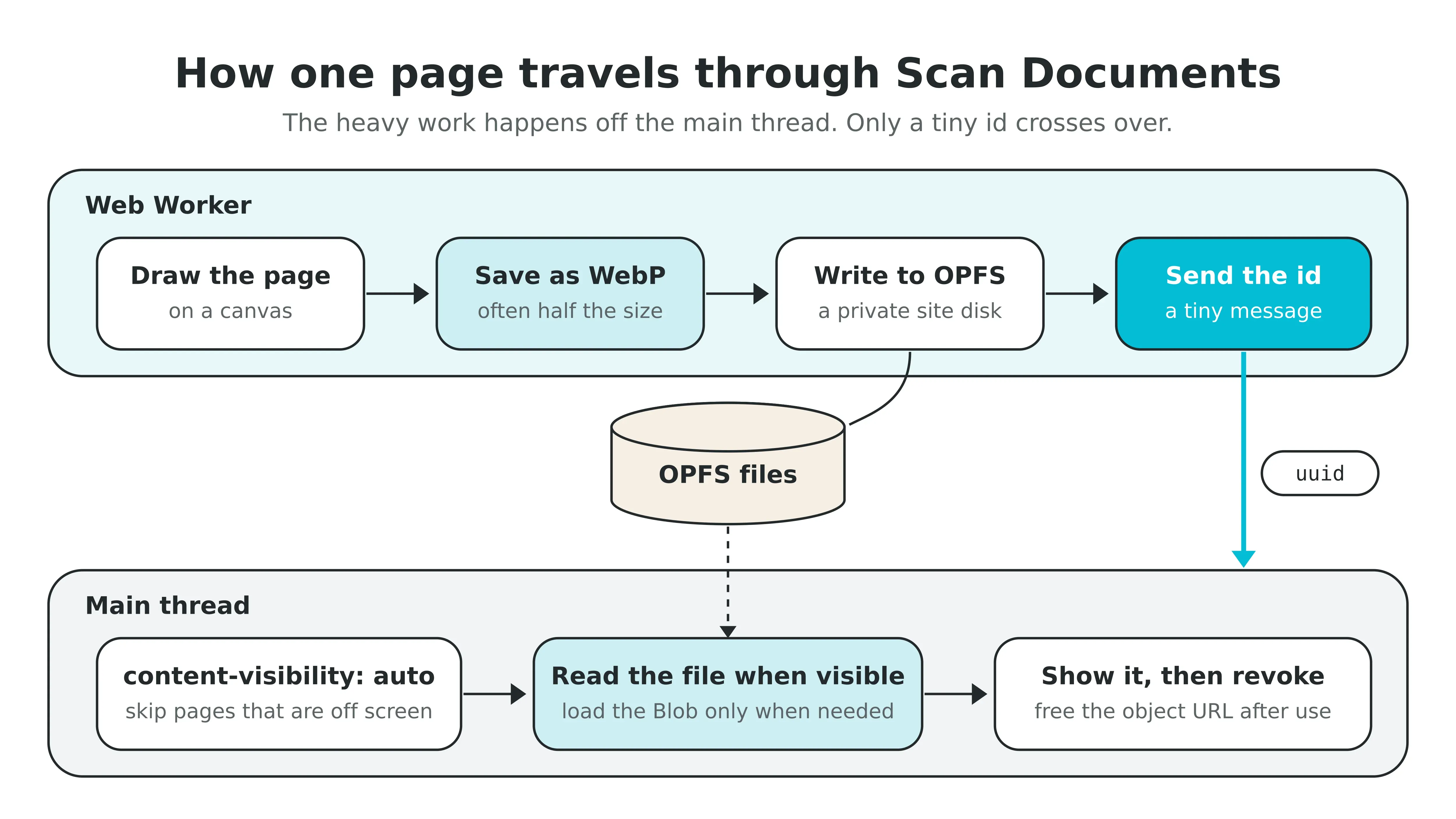
It was like tuning the parts of an engine. Fixing one part helps a little. Getting all of them to work together makes the real difference.
What I learned
Looking back at that project and others like it, a few ideas stand out:
- Measure first, optimize later: Do not guess where the bottleneck is. Use the browser developer tools (the Performance tab and the Memory tab) to find what is really slow before you change anything.
- Use the platform: Modern browsers have powerful built in tools. Web Workers, smart CSS like content-visibility, and OPFS are all there. Learn them and use them. Do not always reach for a library first.
- Memory matters: On the web especially, watch how much data you load and keep. Clean up after yourself, like with object URLs.
- Optimize your files: Make your images, scripts and styles smaller. Smaller files load faster and use less memory. WebP was a huge win here.
- Keep the UI alive: Move any expensive computation off the main thread. Users forgive a short wait with a progress bar. They do not forgive a frozen screen.
- Keep learning: The web platform changes fast. New APIs, new CSS features and new tools like the React Compiler appear all the time. Staying curious is part of the job.
From frozen to smooth
Turning that slow document viewer into something fast was very satisfying. I had to dig into how the browser works inside, try different APIs and think about the whole process, from loading data to rendering it.
These strategies will not fix every performance problem. But if your app handles large amounts of data or heavy processing in the browser, they are a strong set of tools.
I hope my experience gives you ideas for your own projects. Performance work can feel like magic sometimes. Usually, it comes down to finding the bottleneck and applying the right tool, one step at a time.
 Scan Documents Scan your images and create readable PDFs. Powerful document scanning API to integrate into your applications in minutes.
If you enjoy the content, please don’t hesitate to subscribe and leave a comment! I would love to connect with you and hear your thoughts on the topics I cover.
Interested in working together? Check out my services and pricing to see how we can collaborate on your next project. Let's Build